
Dictation into any app on your Mac
Hold a shortcut, speak, and let go: the text goes where you were typing, in your mail, your notes, a chat or a code editor. Tiro recognises the speech on your Mac and never stores the audio.
Hold, speak, let go
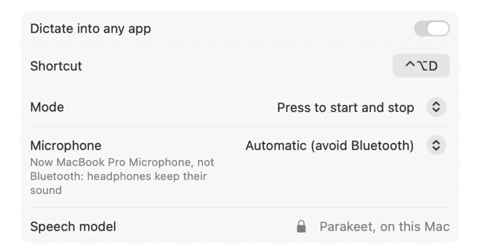
Turn on Dictate into any app in Settings › Dictation. Then hold the shortcut, ⌃⌥D unless you change it, and speak; let go and the text goes in. If you’d rather not hold a key, set the mode to press once to start and again to stop. A dictation can run for up to two minutes.
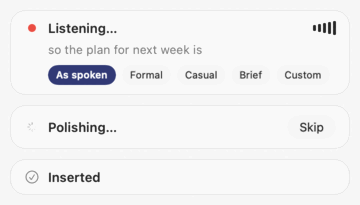
While you speak, a small panel shows the latest words it has heard, so you can tell it’s listening and that it heard you right.
Recognised on your Mac
Dictation uses Parakeet, the speech model Tiro also transcribes meetings with, running on your Mac’s Apple silicon. It understands 25 European languages, Polish and English among them, as set in Settings › Recording. The model, about 470 MB, downloads when you ask for it, and is never downloaded behind your back.
The audio stays in memory while it is recognised and is then dropped. It is never written to a file, not even a temporary one.
Your headphones keep their sound
When a Bluetooth headset like AirPods is your Mac’s microphone, macOS drops its sound to call quality for as long as anything listens through it. So dictation doesn’t: with Microphone set to Automatic (avoid Bluetooth), as it is out of the box, Tiro listens through your Mac’s own microphone, or another wired one, and your music and calls keep full quality while you speak.
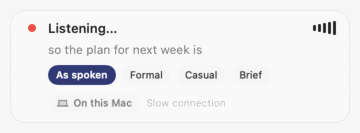
The panel names the microphone it’s listening through. To use the system’s choice, or one microphone every time, change it in Settings › Dictation.
Typos and misheard words, fixed first
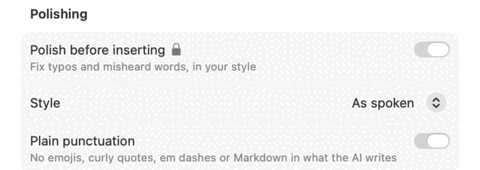
Speech recognition mishears names and words now and then. With Polish before inserting, on unless you turn it off, a language model fixes what recognition got wrong before the text goes in, keeping your meaning, facts and language. Pick a style for how it should read: As spoken, Formal, Casual, Brief, or one you describe yourself. The panel’s chips change it for a single dictation.
Your dictation is never lost to polishing. Press Skip, or the shortcut again, and the text goes in as heard; it does the same when a reply takes too long or changes too much.
When polishing takes a moment, a soft chime tells you the text is in, so you can look away while it works; text that goes in at once makes no sound. Turn it off with Play a sound when polished text is ready in Settings › Dictation.
Where polishing runs
Polishing uses the language model your AI preset uses, and it follows the same rules as notes and answers:
- On your Mac, by default. With the on-device language model, nothing you dictate leaves your Mac. Settings shows a lock next to the switch.
- Through OpenRouter, only if you chose it. If you set up a cloud model with your own OpenRouter key, the dictated text, and a custom style’s instruction, go to OpenRouter, only to providers that keep no data. Settings shows a cloud instead of the lock. The audio never goes.
- Never if you keep things private. With “New recordings are private by default” on in Settings › Recording, polishing stays on your Mac whatever your AI preset says.
A cloud model is used only while your connection is fast enough to keep up. On a slow connection, offline or in Low Data Mode, your words are polished on your Mac instead, or go in as heard if the on-device model isn’t ready, so a slow network never leaves you waiting.
The panel shows where your words will be polished from the moment you press the shortcut: On this Mac, OpenRouter, or As heard, with the reason when it isn’t where Settings would put it.
Pasted, or copied for you to paste
Out of the box, Tiro copies the text and you press ⌘V. Turn on Paste automatically and Tiro presses ⌘V for you, in the app you were dictating into, then puts back what was on your clipboard. macOS lists that permission under Accessibility; Tiro uses it only to send that one keystroke, never to read your typing or your screen.
Tiro never pastes into a password field, or into an app you switched to while speaking: it copies the text instead.
Snippets
Save text you use often, like a sign-off or a status template, and insert it by saying “insert snippet” and its name, or from the snippet picker’s shortcut. In a snippet, {text} stands for the words you say after its name and {date} for today. An AI snippet is an instruction instead: the language model writes the text, on your Mac or through OpenRouter, by the same rules as polishing. Snippets go in as they are, unpolished.
What it keeps
Settings › Dictation counts your dictations, words and the time they saved you, from lengths only, never what you said, and you can clear the counts at any time. Tiro doesn’t keep the audio, and what you dictated isn’t stored or logged: only your last five dictations stay in memory, in the menu bar, in case a paste went astray, until Tiro quits.
Dictation is part of Tiro for Mac. It is off until you turn it on, and the microphone permission is asked for only then.
Free. One download for Mac and iPhone. No account.